Chapter 1 Installing R on Your Computer
Before you can start analyzing economic data, you need to set up your computing environment. This chapter walks you through installing R and RStudio, and verifying that everything works correctly.
1.1 Understanding R and RStudio
You’ll need to install two separate programs: R and RStudio. This can be confusing at first, so let’s clarify what each one does.
R is the programming language itself—it’s what actually runs your code and performs calculations. You could use R on its own, but the interface is quite basic.
RStudio is an application that makes working with R much more pleasant. It provides a text editor for writing code, a viewer for plots, tools for managing files, and many other conveniences. When you work with R, you’ll almost always do so through RStudio.
Important: You must install R first, then install RStudio. RStudio needs R to function.
1.2 Installing R
The installation process differs slightly depending on your operating system.
1.2.1 Windows
- Go to the R Project website: https://cran.r-project.org/
- Click “Download R for Windows”
- Click “base”
- Click “Download R-4.x.x for Windows” (the version number will vary)
- Run the downloaded
.exefile - Follow the installation wizard, accepting the default settings
1.2.2 macOS
- Go to the R Project website: https://cran.r-project.org/
- Click “Download R for macOS”
- Choose the appropriate version:
- If you have an Apple Silicon Mac (M1, M2, M3, or M4 chip), download the “arm64” version
- If you have an older Intel-based Mac, download the “x86_64” version
- Not sure which you have? Click the Apple menu → “About This Mac” and look at the Chip or Processor field
- Open the downloaded
.pkgfile - Follow the installation prompts
1.3 Installing RStudio
Once R is installed, you can install RStudio.
- Go to the Posit website: https://posit.co/download/rstudio-desktop/
- Scroll down to “All Installers” and download the version for your operating system
- Run the installer and follow the prompts
RStudio Desktop is free for individual use. You don’t need the paid “Pro” version for anything in this book.
1.4 Launching RStudio
After installation, open RStudio (not R directly). On Windows, search for “RStudio” in the Start menu. On macOS, find it in your Applications folder or use Spotlight search.
When RStudio opens for the first time, you’ll see a window divided into several panels. Don’t worry if it looks overwhelming—we’ll explore each part.
1.5 A Tour of RStudio
RStudio’s interface is divided into four main areas, though you may only see three when you first open it.
1.5.1 The Console (Bottom Left)
The Console is where R actually runs. You can type commands directly here and see the results immediately. When you first open RStudio, you’ll see some text about the R version you’re running, followed by a > prompt. This prompt is R waiting for you to give it instructions.
Try typing the following and pressing Enter:
## [1] 2R responds with the answer. The [1] you see before the result is R’s way of numbering output—don’t worry about it for now.
1.5.2 The Source Editor (Top Left)
This panel might not be visible when you first open RStudio. It appears when you open or create a file. The Source Editor is where you’ll write longer pieces of code that you want to save. Think of the Console as scratch paper and the Source Editor as your notebook.
To open a new R script, go to File → New File → R Script (or press Ctrl+Shift+N on Windows, Cmd+Shift+N on Mac).
1.6 Verifying Your Installation
Let’s make sure everything is working properly. In the Console, type each of these lines one at a time, pressing Enter after each:
## [1] "R version 4.4.0 (2024-04-24)"You should see your R version number displayed.
## [1] 162.8895This calculates what $100 grows to after 10 years at 5% compound interest.
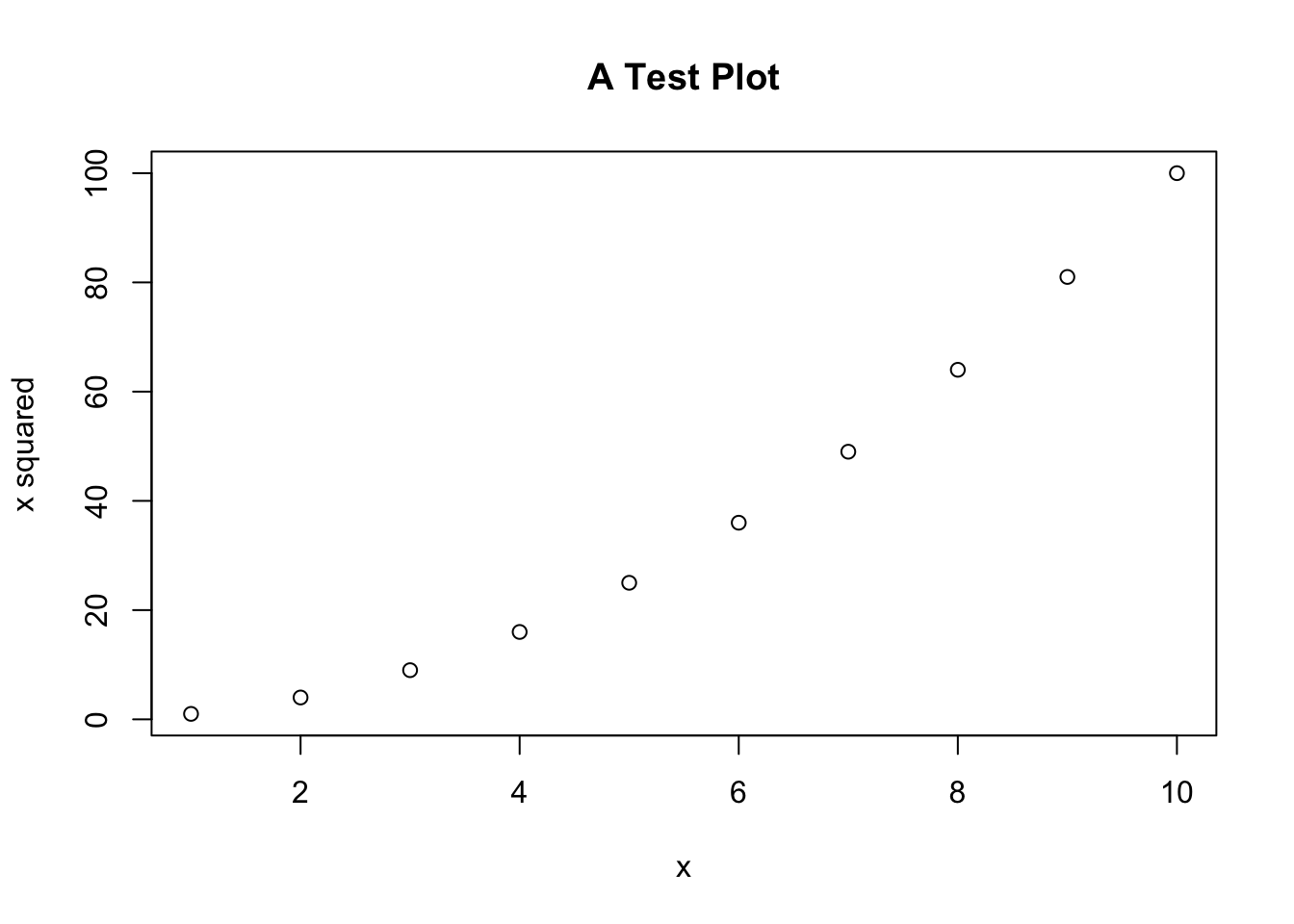
If a plot appears in the bottom-right panel showing a curved line, your installation is working correctly.
1.7 Keeping R Updated
R releases new versions periodically. You don’t need to update immediately every time, but it’s good practice to update once or twice a year. To update:
- Download and install the new version of R (same process as initial installation)
- RStudio will automatically detect the new version
You generally don’t need to reinstall RStudio when you update R.
1.8 Exercises
Open RStudio and use R to calculate what $1,000 would be worth after 20 years at 3% annual compound interest. (Hint: the formula is \(P \times (1 + r)^t\))
In the Console, type
Sys.Date()and press Enter. What does this function return?Explore the Help panel by typing
?meanin the Console. This opens the documentation for themeanfunction. Skim through it—don’t worry if you don’t understand everything yet.Create a new R script (File → New File → R Script), type
# My first R scripton the first line, and save it to your computer. This is how you’ll save your work in future chapters.